
How to Print to PDF
By
 Emily Shaw
| on
Emily Shaw
| on
The ability to easily convert documents into a PDF (Portable Document Format) has become essential these days. This guide will show you how to print to PDF on various platforms, including Windows, macOS, and even online using PDF tools like DocFly in a series of tutorials.
Table of Contents
Why to Print to PDF
Here are a few reasons why you might want to consider printing files to create PDF documents:
Universal Compatibility
PDFs are designed to look the same on any device or operating system. Whether you're sharing a document with someone using a different computer, smartphone, or tablet, the formatting will remain intact.
File Security
PDFs can be encrypted and password-protected, ensuring that sensitive information stays secure. You can also restrict editing, copying, or printing of the document, giving you full control over your files.
Space Efficiency
PDF files often have smaller file sizes compared to other formats, making them easier to store and share. This is especially important when sending documents via email or uploading them to cloud storage.
Easy to Share
Since the PDF file format is widely used and can be opened on almost any device, it is an ideal format for sharing documents. From resumes to contracts, printing to PDF ensures that your document will be viewable and professional when it's received.
Printing to PDF is not only convenient but also enhances document security, accessibility, and overall file management.
Step-by-Step Guide to Printing to PDF in Windows
Follow these steps to quickly convert your document or web page into a PDF file:
Step 1: Open the Document
Open the document, image (such as JPG file), or web page you want to print to PDF. You can do this with any program that supports printing, such as Microsoft Word, Excel, PowerPoint, or your web browser (such as Google Chrome).
Step 2: Select the Print Option
Once your document is open, click on File in the top menu and then select Print from the dropdown. You can also use the shortcut Ctrl + P to access the print window directly.
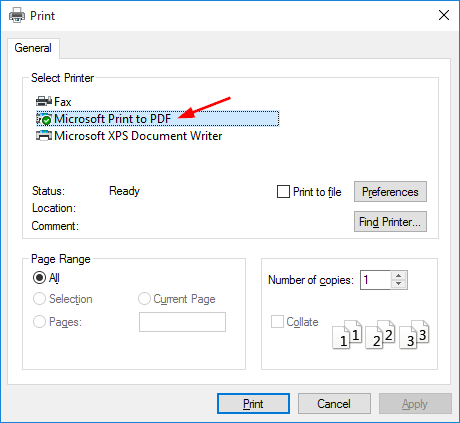
Step 3: Choose "Microsoft Print to PDF"
In the print window, you’ll see a list of available printers. From the dropdown menu, select Microsoft Print to PDF as your PDF printer. This option is available on most modern versions of Windows (including Windows 10 and Windows 7).
Step 4: Save as PDF
Once you're ready, click the Print button. Instead of sending the file to a physical printer, a new window will pop up asking where you’d like to save PDF. Choose the folder, name your file, and click Save.
Step-by-Step Guide to Printing to PDF in macOS
Printing to PDF on an Apple macOS device is just as easy as it is on Windows. Here’s how you can print to PDF on your Mac:
Step 1: Open the Document
Start by opening the document, image, or web page that you want to print to PDF. This can be done in any app that supports the Print function, such as Safari, Pages, or Preview.
Step 2: Access the Print Menu
Once the document is open, click File in the top-left menu bar and select Print. You can also press Command + P to open the print dialog directly.
Step 3: Select "Save as PDF"
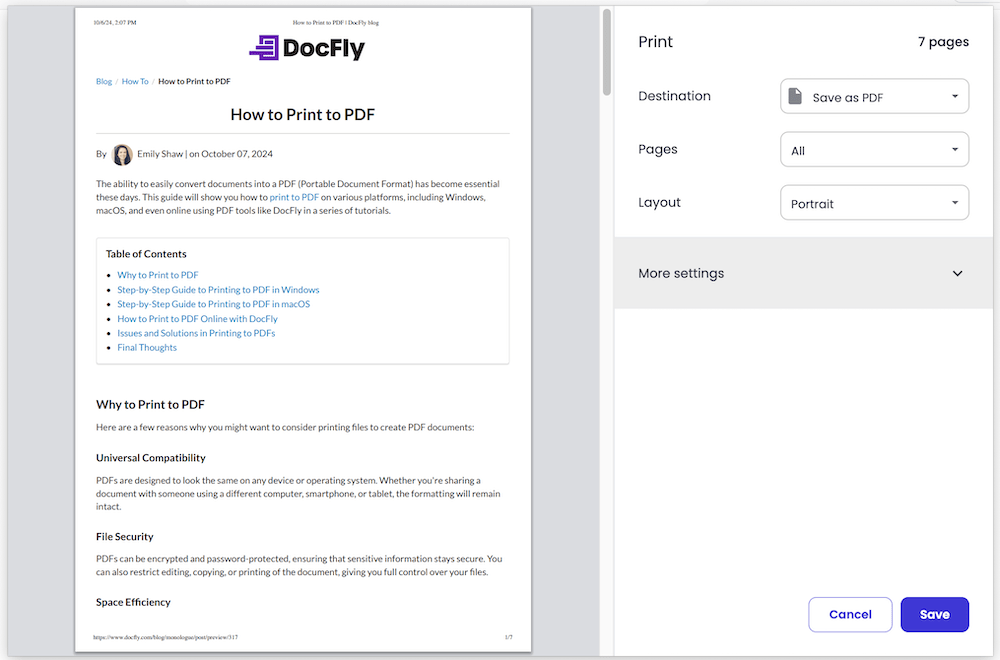
In the print dialog box, look for a small PDF button at the bottom left corner. Click it, and from the dropdown menu, select Save as PDF.
Step 4: Choose Save Location
A new window will pop up, prompting you to choose a location to save your PDF file. Select the folder where you want to save it, and enter a file name.
Step 5: Save the PDF
After setting your preferences, click Save. Your document will be converted and saved as a PDF in the selected location.
How to Print to PDF Online with DocFly
DocFly is an online PDF editor that allows you to convert files (such as a Word document) into PDF format without needing a specific device (such as Android or Linux). Here’s how:
Step 1: Upload Your File
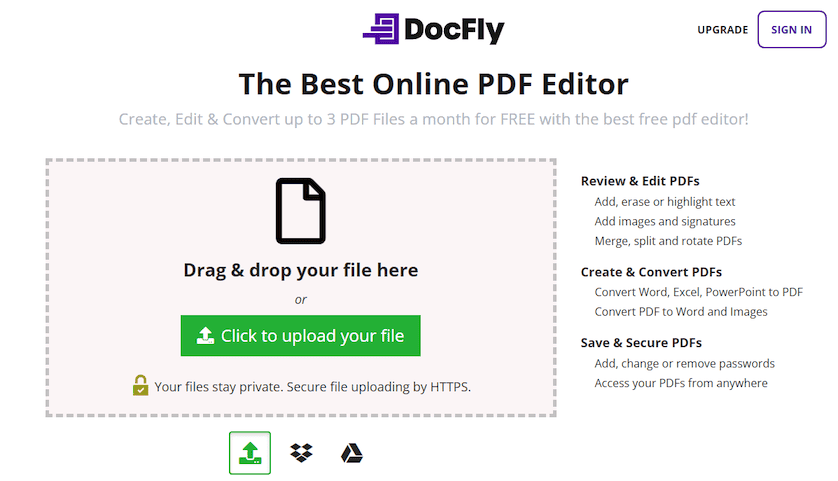
Either drag-and-drop your file into the indicated area, or choose a file from your device or cloud storage (such as Google Drive) using the Click to upload your file button as shown in the screenshot below.
Step 2: Convert to PDF and Print
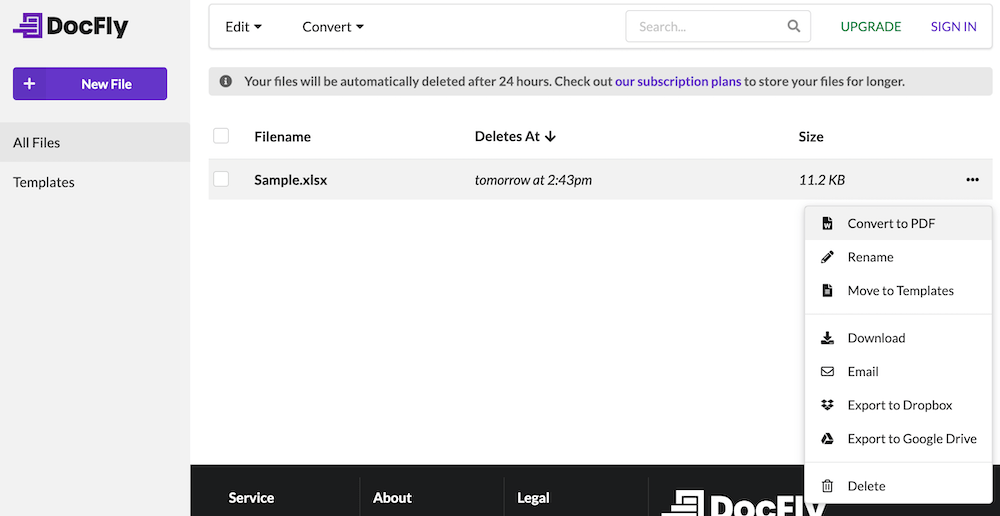
Simply convert your file by using the drop-down menu to the right of the file in the dashboard, and then click on Convert to PDF (which performs the print to PDF operation in the background). Once converted, you can easily view PDF or make further edits.
Issues and Solutions in Printing to PDFs
While printing to PDF is generally straightforward, a few issues can arise. Here’s how to troubleshoot some of the most frequent problems:
Point 1: Printer Not Showing "Print to PDF" Option
Issue: Sometimes the "Print to PDF" option is not available in your list of printers.
Solution: If you're using Windows, make sure the Microsoft Print to PDF feature is enabled. Go to Settings > Devices > Printers & Scanners and click Add a Printer. Select Microsoft Print to PDF if it’s not already listed. On macOS, this option is built-in and should always appear under the PDF dropdown in the print dialog.
Point 2: PDF Output Looks Different from the Original Document
Issue: After printing to PDF, the formatting, fonts, or layout may look different.
Solution: This can happen if the fonts or formatting in your original document aren’t fully supported in the PDF converter. To resolve this, ensure all fonts are embedded in your original file or adjust your document’s formatting to be more compatible with PDFs.
Point 3: PDF File Size is Too Large
Issue: The PDF file size is much larger than expected.
Solution: Large PDF files can be difficult to share or store. To reduce the file size, you can adjust print settings before conversion, such as lowering the resolution or excluding unnecessary elements like images. Alternatively, use a PDF compressor tool, either built into macOS or online services like DocFly, to minimize the file size without sacrificing quality.
Final Thoughts
Printing to PDF is a versatile and powerful tool for managing documents. Converting files to PDF ensures that your documents are universally accessible, secure, and easy to share. With the solutions provided for common issues, you can tackle any challenges that arise and enjoy a smooth, seamless experience when printing to PDF.

Emily Shaw is the founder of DocFly. As a software developer, she built the service from scratch and is responsible for its operations and continued growth. Previously, she studied engineering at the University of Hong Kong and mathematics at the University of Manchester.
Loved what you just read? Share it!
Related posts you might enjoy
How to Reduce the Size of a PDF

How to Convert a Microsoft Word Document to PDF