
How to Reduce the Size of a PDF
By
 Emily Shaw
| on
Emily Shaw
| on
At one point or another, we have all been in a hurry to send an important PDF, only to be met with a notification saying, "Your file is too large to send via email." Understandably, this is a frustrating situation, and you may have had to jump through hoops to transfer your files. However, you might not know that with a few simple steps and tools, you can reduce the size of your PDFs, making them far easier to save and send.
Table of Contents
Understanding PDF Size Optimization
Knowing how to optimize the size of PDF documents is an essential skill for anyone looking to save space, improve upload and download speeds, or simply make documents easier to send via email. Compression plays a vital role in this process. It involves reducing the file size of your PDF without compromising quality. If you are limited in the amount of storage or bandwidth you have at your disposal, document optimization can be an absolute lifesaver.
How to Compress PDF Files
PDF Compression can be achieved using a few different methods.
- Reducing image quality: This involves lowering the dots per inch (DPI) setting of images within the PDF to decrease the file size.
- Removing unnecessary metadata and fonts: Often, PDFs carry additional information and fonts that may not be needed for their intended use.
- Using OCR: Optical Character Recognition can be used to convert images of text into actual text, which is often more space-efficient.
Tools for PDF Size Reduction
Fortunately, the previously mentioned compression processes don't have to be performed manually. A wide variety of tools are available to reduce PDF file size. Here are three of our favorites.
DocFly
DocFly is a PDF editor that provides a straightforward online PDF compressor. It offers a user-friendly interface and effective compression without the need for software installation. DocFly's interface is intuitive, making it accessible even for those with limited technical skills. The compression process is straightforward, with clear instructions at each step.
Apart from compression, DocFly offers various PDF editing features such as merging, splitting, and converting files, making it a versatile tool for all your PDF needs. Being an online tool, DocFly can be accessed from your iPhone or any mobile device with an internet connection.
Adobe Acrobat Online
Adobe is the biggest name in PDF editing software, and its online programs are considered by many to be the gold standard. Besides compression, Adobe Acrobat Online provides advanced PDF editing capabilities, including annotation, conversion, and digital signing. The interface is clean and professional, designed to cater to both beginners and advanced users.
Visual PDF
Like DocFly and Acrobat Online, Visual PDF has an expansive toolbox of PDF manipulation tools. However, it really stands out as an optimization tool with its various levels of PDF compression ranging from low to extreme.
Step-by-Step: Reducing PDF Size with DocFly
Reducing the file size of your PDFs with DocFly is incredibly simple, just follow these easy steps, and you’ll have manageable files in a matter of minutes.
Step 1: Access the Compression Tool
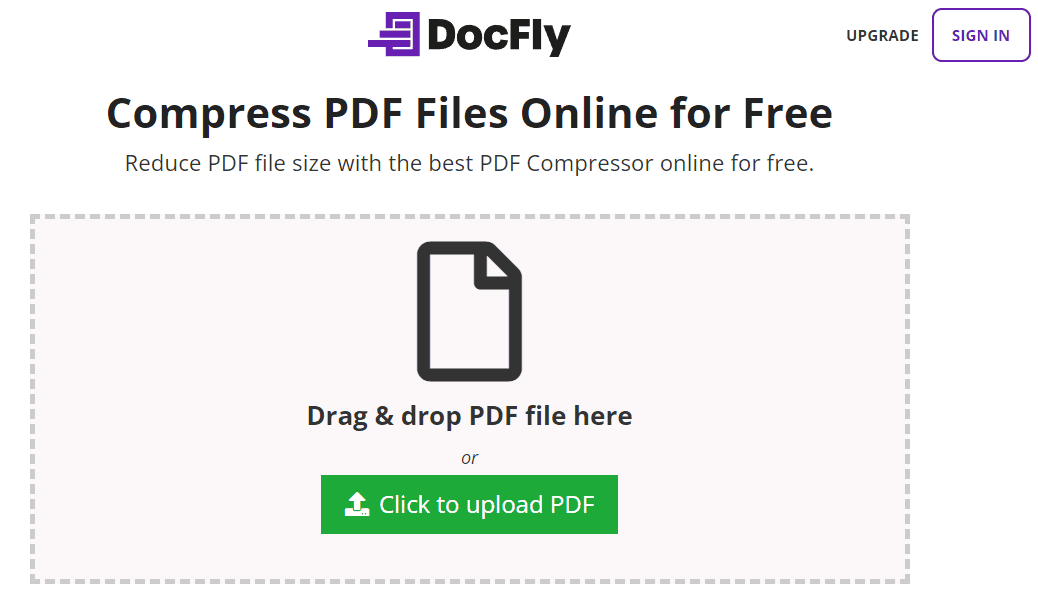
To start compressing your PDF, first, navigate to DocFly and access the PDF compression tool.
Step 2: Upload Your PDF File
Once you're on the compression page, you'll see the file dropzone. Here, you can upload the PDF you want to compress. Simply drag and drop your PDF file into this area. Alternatively, if your PDF is stored in a specific folder and dragging isn't convenient, you can click the 'Upload' button to open a file explorer. Navigate through your directories to select the file manually and open it to upload.
Step 3: Compress PDF
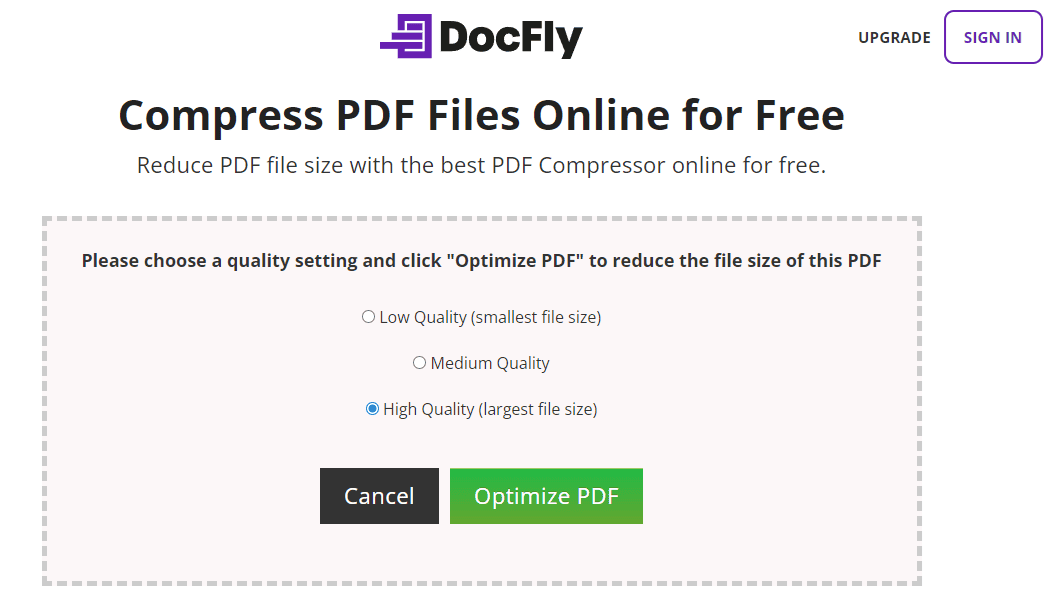
After your file has been uploaded, you will see the options shown below. To begin the compression process, choose the quality of the compression using the radio buttons. For maximum compression, choose Low Quality. To preserve the quality of your PDF as much as possible choose High Quality. Then, click on the 'Optimize PDF' button.
Step 4: Download Your File
Once the compression process is complete, you will be able to download your file or export it to a cloud storage service (like Dropbox) from within the interface. DocFly allows you to convert and download up to three PDFs for free, but if you need to compress more PDFs frequently, DocFly offers monthly plans that provide unlimited downloads.
Step 5: Benefit From Your Compressed File
With your PDF now compressed, the file is lighter and more manageable, making it easier to handle across various digital platforms. Whether you need to email it as an attachment, upload it to a server, or simply save space on your device, the reduced file size ensures quicker uploads and downloads, lower storage requirements, and more efficient document management.
Tips and Best Practices for Effective PDF Compression
Every PDF is different, so the compression level will differ from file to file. Here are a few tips to keep in mind when optimizing your PDFs.
Tip 1: Audit Space Usage
Use PDF editors that offer a space usage audit feature to identify elements that take up the most space. This helps you target specific areas for compression.
Tip 2: Remove Unused Fonts
Embedded fonts can increase PDF size. To reduce the file size, remove any fonts not used in the document.
Tip 3: Consider the Purpose of the PDF
Tailor your compression strategy based on how the PDF will be used. If it's for print, maintain higher image quality; if it's for web use, lower quality may be acceptable.
Tip 4: Use Batch Processing
If you have multiple files to compress, look for tools that support batch processing to save time.
Tip 5: Regularly Update Your PDF Tools
Software updates often include improved compression technologies, so keeping your PDF editor updated can lead to better performance and more efficient file sizes.
PDF Optimization for Better File Management
Reducing the size of your PDF files is a crucial step for efficient document management. By understanding how PDF compression works, using reliable tools like DocFly, and following these best practices, you can optimize your PDF files for better performance and easier sharing.

Emily Shaw is the founder of DocFly. As a software developer, she built the service from scratch and is responsible for its operations and continued growth. Previously, she studied engineering at the University of Hong Kong and mathematics at the University of Manchester.
Loved what you just read? Share it!

Related posts you might enjoy
Learn How to Compress PDF Size Below 100Kb

PDF Compression: 5 things you probably didn’t know