
How to Edit a Signed PDF
By
 Emily Shaw
| on
Emily Shaw
| on
So, you have a PDF that's been signed, sealed, and delivered... but now you need to make some changes. What do you do? Editing a signed PDF might seem like a tricky task, but don’t worry! In this guide, we'll walk you through the process in a series of tutorials, using a handy tool called DocFly. From understanding the basics of signed PDFs to legal and ethical considerations, we've got you covered. Let’s get to it.
Table of Contents
Understanding the Basics of Signed PDFs
Before looking into editing signed PDFs, let's understand the basics:
What is a Digital Signature?
A digital signature is a cryptographic technique used to validate the authenticity and integrity of a document. It serves as a digital fingerprint, uniquely tied to the signer, and is virtually impossible to replicate. When a PDF is signed digitally, it ensures that any alterations to the document after signing will be detected.
How are PDFs Signed?
Common methods include:
- Certificate-Based: Using a digital certificate from a Certificate Authority (CA).
- Approval-Based: Simple approvals adding a person's name or image.
Types of Signatures:
- Visible: Graphic or digital signatures with visible elements.
- Invisible: Secure, embedded signatures without visible changes.
Verifying Signed PDFs:
Once a PDF is signed, recipients can verify its authenticity and integrity using most PDF readers.
Now, let's proceed to the step-by-step process of editing a signed PDF using DocFly.
Step-by-Step: Editing a Signed PDF with DocFly
Step 1: Import your Signed PDF
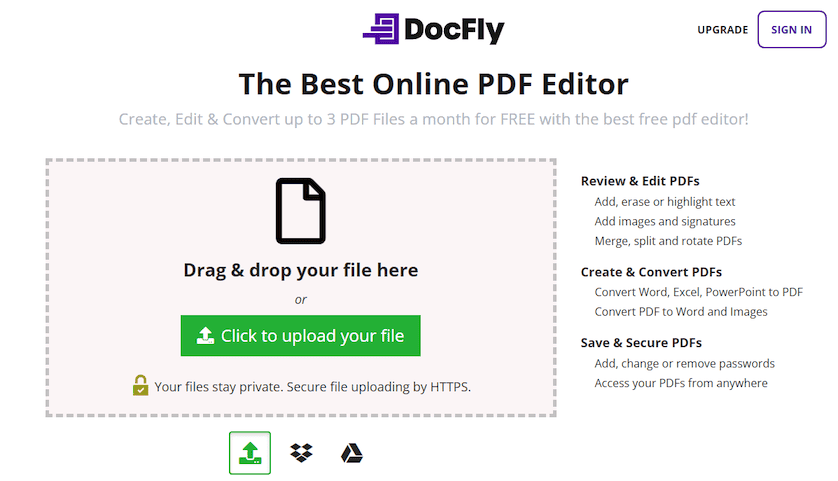
Firstly, use your web browser to navigate to DocFly. Next, import your file by uploading it from your computer or importing it from a cloud storage service like Dropbox or Google Drive.
Step 2: Print your File using DocFly
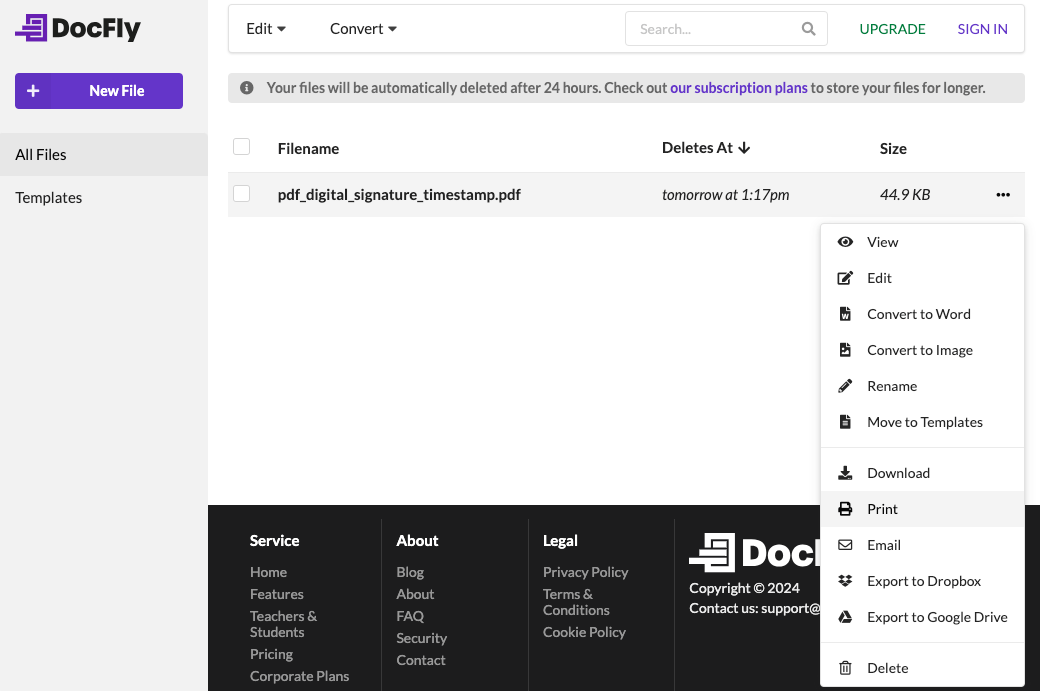
If you having printing permissions (i.e. the file is not read-only), the next step is to print your PDF. If you do not have the permission to print the file, you will need to input the correct password.
Printing your PDF will generate a new PDF file (that is visually identical to the original), but without the electronic signature applied. This will allow you to make edits. There are limitations to editing a signed PDF, and they are explained in the next section (“Legal and Ethical Considerations”).
To print your PDF, simply click on the “...” dropdown icon, and then select “Print”.
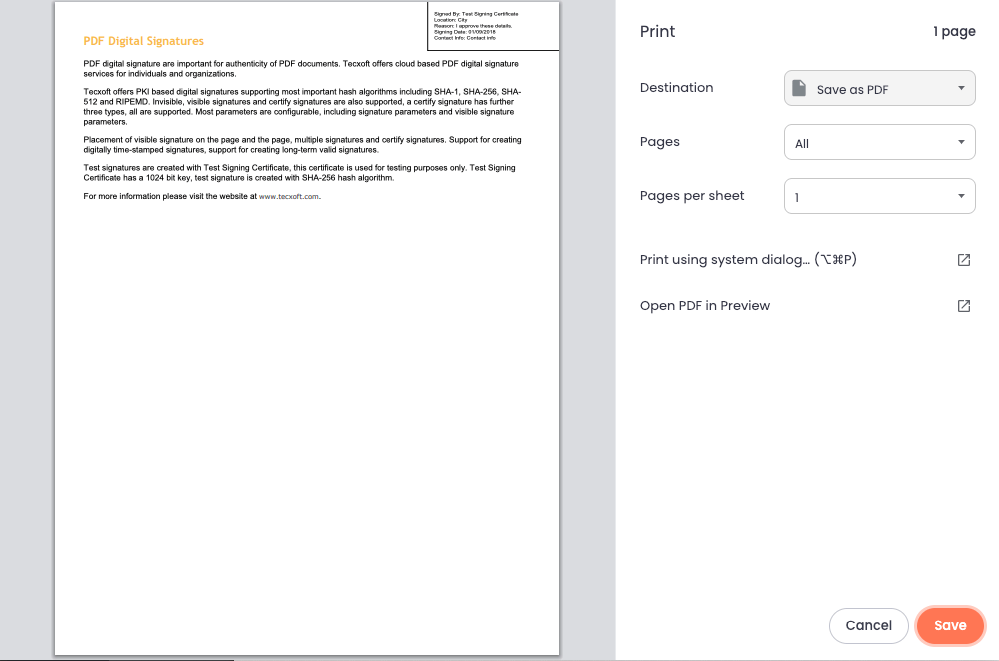
Now choose a PDF printer, which will save the file as a PDF. On a Mac, choose “Save as PDF” from the destination menu. On Windows, choose “Microsoft Print to PDF” as the printer.
Step 3: Make the necessary edits
Next, re-upload your file into DocFly’s PDF editor and make edits as necessary. DocFly includes a range of edit PDF features allowing you to edit text, annotate PDF, sign PDF, convert PDF, and more. Finally, either digitally sign the PDF yourself, or ask the original signer to place a signature on the signature field.
Step 4: Export your edited PDF file
Finally, export your edited file using the options shown from the toolbar.

Legal and Ethical Considerations in Editing Signed PDFs
The most important point is that a digitally signed PDF document cannot be meaningfully altered without losing its validity. Methods to edit a signed PDF either digitally “print” the PDF as an image and then re-convert it back to a PDF (creating an identical, unsigned PDF in the process). Alternatively, if you are the signer, you can usually “unsign” or clear the signature before making the necessary edits. Of course, to ensure the edited PDF is valid, it must be digitally signed again. In short, there is no good way to edit a signed PDF without the original signature being invalidated, and this is by design.
Beyond the main point above, here are a few more to consider:
Consideration 1: Validity of Signatures
When editing a signed PDF file, ensure that the changes made do not compromise the validity of existing signatures. Altering critical content could raise questions about the authenticity of the signatures and the document as a whole.
Consideration 2: Consent of All Parties
If the signed PDF involves multiple parties, it's crucial to obtain consent from all parties before making edits. Changes made without proper consent could lead to disputes over the document's accuracy and intentions.
Consideration 3: Document Integrity
Maintaining the integrity of the original document is vital. Any edits should be transparent and clearly documented to preserve the trustworthiness of the signed PDF.
Alternative Methods to Edit Signed PDFs
While using DocFly is an efficient way to edit signed PDFs, there are other methods available. Here are a few alternatives to consider:
Method 1: Using Adobe Acrobat
Adobe Acrobat is a popular and robust tool for working with PDFs. It offers advanced editing features, including the ability to modify text, images, and even scanned documents. If you are the signer and used Adobe Acrobat to sign the PDF, you can easily clear the e-signature by right-clicking on the signature and selecting “Clear Signature”. This will allow you to edit the PDF as required. Adobe Acrobat is premium software, but a free download trial is available.
Method 2: Online PDF Editors
There are several online PDF editors available that can be used to edit signed PDFs. These tools often provide a user-friendly interface and basic editing functions such as adding text, images, and annotations. Some popular online and offline PDF editors include PDFescape, Smallpdf, and Sejda.
Method 3: Using Built-in OS Tools
There may be built-in tools for basic PDF editing on your OS. On Windows, you can open your PDF document using Microsoft Word and use the "Microsoft Print to PDF" functionality to create a new PDF. On MacOS, Preview offers some editing capabilities for PDFs.
Conclusion
Editing signed PDFs is usually a crucial part of one's workflow, be it for business or personal use. Understanding the basics, considering legal implications, and exploring alternative methods are key steps. By using tools like DocFly, Adobe Acrobat, or online editors, you can navigate this task effectively.

Emily Shaw is the founder of DocFly. As a software developer, she built the service from scratch and is responsible for its operations and continued growth. Previously, she studied engineering at the University of Hong Kong and mathematics at the University of Manchester.
Loved what you just read? Share it!

Related posts you might enjoy
How to Create an E-signature

How to edit PDFs for free

The 5 ways to edit a PDF file