How to Create a PDF
By
 Emily Shaw
| on
Emily Shaw
| on
Creating a PDF (Portable Document Format) has become an essential skill in today’s world. Whether you are sharing documents for business, academic purposes, or personal use, PDFs are universally recognized, ensuring that your content looks the same across different devices and platforms. In this guide, we will walk you through the tools and techniques to create a PDF, using one of the popular tools, DocFly, in a step-by-step tutorial.
Table of Contents
Tools and Techniques for PDF Creation
There are various tools and methods you can use to create PDF format files, each offering unique features for different needs. Some are standalone software, while others are online services. Below are some popular options:
Tool 1: Adobe Acrobat
Adobe Acrobat is one of the most widely used tools for creating, editing, and managing PDF files. It offers a full suite of features but comes at a premium price. Acrobat is available across several platforms including Apple iOS, MacOS and Microsoft Windows. A free trial of the software can be downloaded from the Adobe website or from your device’s app store.
Tool 2: Google Docs
Google Docs allows you to easily convert any document, and even a webpage such as an HTML file, into the PDF file format by downloading it as a PDF. It is free, easy to use, and perfect for basic needs.
Tool 3: DocFly
DocFly is an online tool that provides a user-friendly way to create, edit, and manage a PDF file without the need to download any software.
Tool 4: Microsoft Office
Microsoft Office applications (including Microsoft Word, Excel, and PowerPoint) allow users to save their documents (such as a Word file) directly as PDFs, making it a convenient option for those already using Office for document creation. From within an Office document, such as a Word document or a spreadsheet, simply choose “File” from the menu bar, “Save As” and then choose “pdf (*.pdf)” under the drop-down menu for file type.
Tool 5: Print or Scan to PDF
If you are looking to scan documents to PDF, you should be able to save the document as a PDF when scanning. Alternatively, you can “print” any file to PDF, by choosing the in-built PDF printer of your operating system.
In the next section, we will focus on creating a PDF using DocFly, which is a versatile and accessible option for beginners and experts alike.
Step-by-Step Guide to Creating a PDF with DocFly
Below is a simple guide to help you create your first PDF using DocFly.
Step 1: Access DocFly
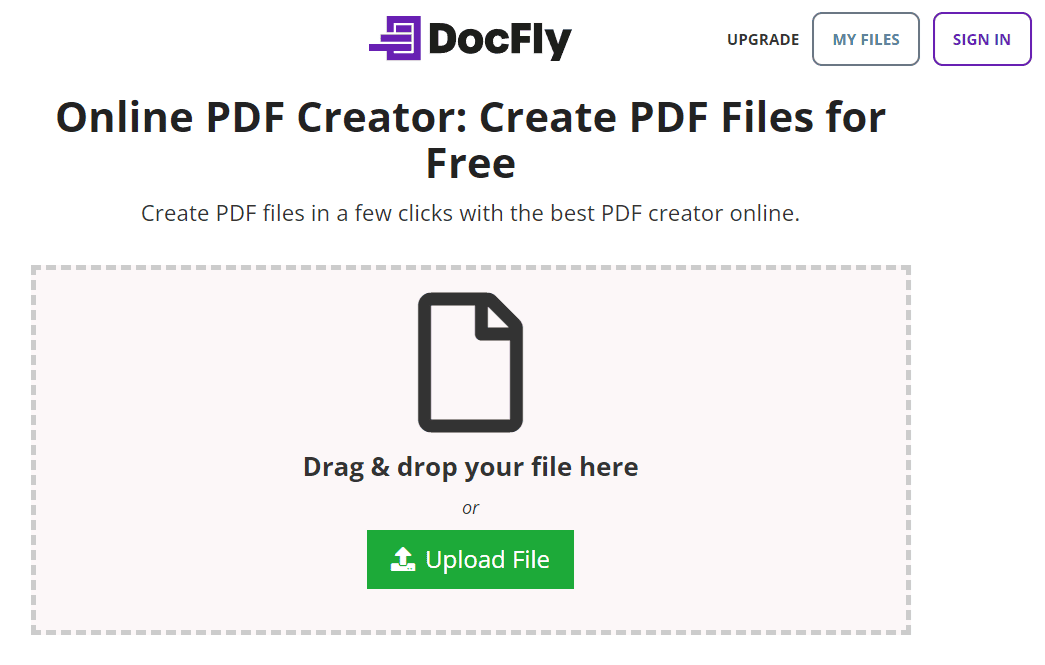
Start by visiting DocFly’s homepage or create PDF page. Either drag-and-drop your file into the indicated area, or choose a file from your device or cloud storage (such as Google Drive) using the “Upload File” button.
Step 2: Convert to PDF
Upon importing your file, convert the file to PDF. The easiest way to convert your file is to use the drop-down menu to the right of the file, and then click on “Convert to PDF”. This will launch the PDF creator. Alternatively, use the options under the Convert menu in the top navigation bar. For example, by using the Image to PDF converter for converting JPG to PDF or PNG to PDF. As another example, you can convert Word to PDF by using the dedicated converter.

Step 3 (Optional): Edit and Customize Your PDF
Once uploaded, DocFly provides editing tools that allow you to add text, images, or even signatures to your PDF. You can rearrange PDF pages, insert new content, or make other adjustments as needed. Simply open your PDF document using the PDF editor online. These customization options are especially helpful when creating personalized PDFs.
Step 4: Download or Export your File
Once you are happy with your PDF file, it is ready to be downloaded. On your Dashboard, click on Export and Download to save your new files to your computer.
Benefit 1: No Software Installation
DocFly is a cloud-based tool, so you do not need to install anything on your computer, which saves space and time.
Benefit 2: Versatile Editing Tools
From adding annotations to merging files, DocFly offers a robust set of editing features that make PDF creation flexible and efficient.
Benefit 3: Cross-Platform Accessibility
Since it is an online tool, you can use DocFly from any device with internet access such as mobile phones (such as an Android or iPhone), tablets (such as an iPad), or computers (such as Windows, Mac, and other operating systems).
The benefits above collectively makes DocFly one of the best PDF creators. Now that you are familiar with the process, let us move on to a few tips to keep in mind while creating PDFs.
Things to Consider While Creating a PDF
While creating a PDF is simple, there are a few important considerations to ensure that your document is polished and professional. Here are some tips to keep in mind:
Tip 1: Optimize for File Size
Large PDFs can be difficult to share via email or slow to load on mobile devices. Before you convert files to PDF, consider optimizing the file size by compressing images or removing unnecessary elements. Many PDF tools, including DocFly, offer file compression options to help reduce the size without sacrificing quality.
Tip 2: Ensure Readability Across Devices
Make sure your PDF is easily readable across various devices like desktops, tablets, and smartphones. This involves using clear fonts, properly formatting your content, and checking that images or charts are visible on smaller screens. Preview your document on different devices to catch any potential issues.
Tip 3: Maintain Security and Privacy
If your PDF contains sensitive information, consider adding password protection or encryption. Many PDF creation tools, including DocFly, allow you to secure your document with a password or restrict editing and printing permissions.
Tip 4: Use Metadata
Including metadata such as the author, title, and subject helps improve searchability and provides context for those viewing your PDF. It is a small detail that enhances the professionalism of your document.
Conclusion and Final Thoughts
Creating a PDF is an essential skill that can greatly improve how you share and present information. Whether you are using a tool like DocFly, Adobe Acrobat, or Google Docs, the process is straightforward and accessible to everyone. By following the steps outlined in this guide and keeping important tips in mind—such as optimizing file size and ensuring readability—you can create high-quality PDFs with ease.
Now that you know how to create PDF, you will be better equipped to share documents that look polished and professional, no matter the platform.

Emily Shaw is the founder of DocFly. As a software developer, she built the service from scratch and is responsible for its operations and continued growth. Previously, she studied engineering at the University of Hong Kong and mathematics at the University of Manchester.
Loved what you just read? Share it!