How to Print a PDF
By
 Emily Shaw
| on
Emily Shaw
| on
Printing a PDF may seem like a straightforward task, but depending on the device you're using or the software at hand, it can sometimes get confusing. PDFs are designed to be universally viewable and printable across various platforms, which makes them ideal for documents that need to maintain their formatting. However, ensuring that your PDF prints out exactly as it appears on screen—whether it’s for a work presentation, school assignment, or legal form—can require a few extra steps.
In this guide, we'll walk you through the step-by-step process of printing PDF files using the online tool DocFly, as well as how to print PDFs on different devices like macOS, Windows, and Chromebooks. We’ll also cover some troubleshooting tips to resolve common issues like scaling problems or documents not printing correctly. Whether you're a tech pro or new to using PDFs, this post will help you achieve the perfect print every time.
Table of Contents
Step-by-Step Guide to Printing a PDF with DocFly
DocFly is an online tool that simplifies working with PDF documents, including printing them and other functions (such as rotate PDF). Follow these steps to print a PDF using DocFly:
Step 1: Upload Your File
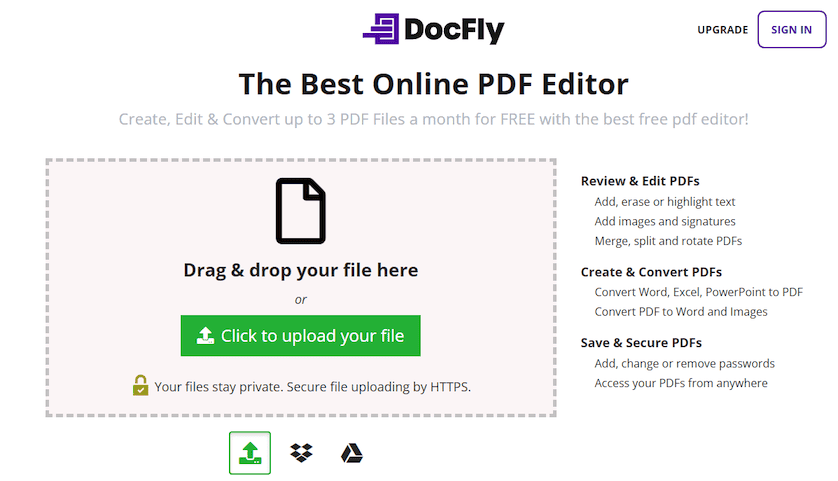
To begin, drag and drop your file into the designated upload area, or click the "Upload" button to select a file from your device or cloud storage (e.g., Google Drive). Simply follow the on-screen instructions to get your file uploaded.
Step 2: Print a PDF
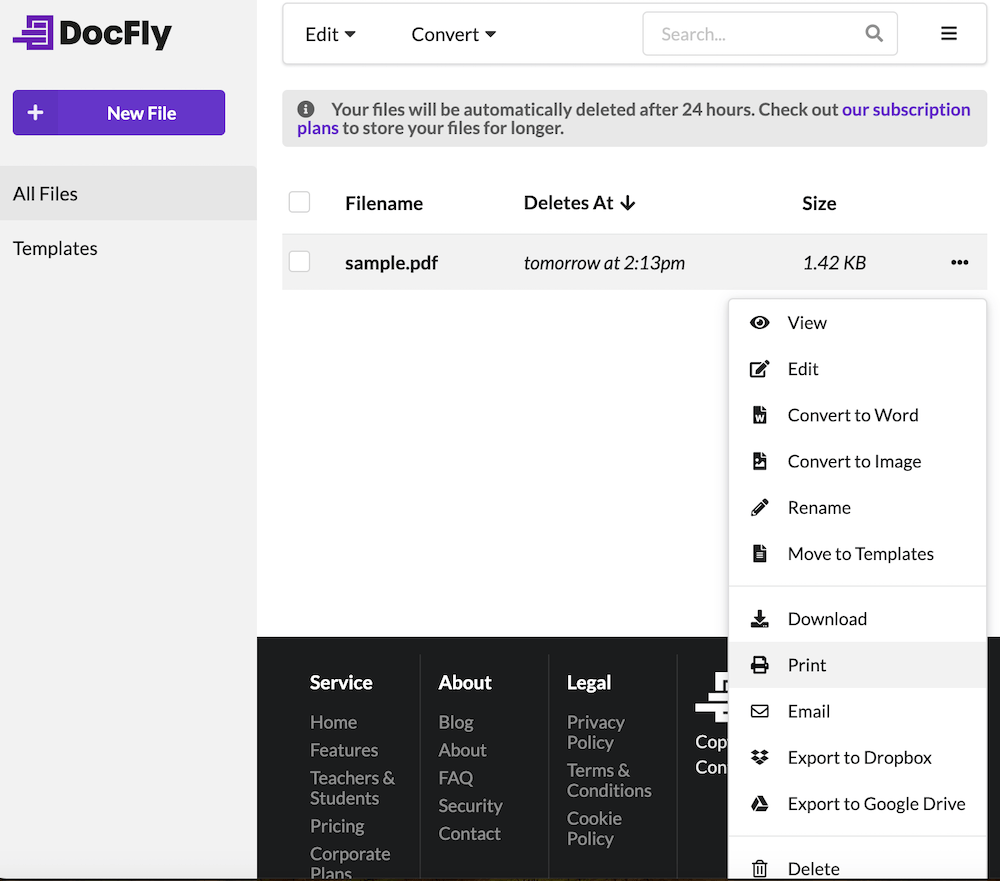
Simply print your file by using the drop-down menu to the right of the file in the dashboard, and then click on Print (which should launch the print dialog box). Once you are happy with your print settings (you can modify various printing options such as the number of copies to print beforehand), go ahead and click on the print button to launch the print job.
Step-by-Step Guide to Printing a PDF on Different Devices
How to Print a PDF on Windows
- Open the PDF with a PDF reader like Adobe Acrobat or Microsoft Word.
- Click on “File” in the navigation toolbar, then select “Print.”
- Choose your printer, set your preferences, and click “Print.”
- To create PDF instead by printing to PDF, choose Microsoft Print to PDF as your printer
How to Print a PDF on macOS
- On your Mac, open the PDF in Preview or any PDF-compatible application.
- Go to “File” and select “Print.”
- Choose your printer, set the printing preferences, and click “Print.”
How to Print a PDF on Chromebook
- Open the PDF in the built-in Chrome PDF viewer.
- Press "Ctrl + P" or click the print icon.
- Select your printer and adjust settings as needed before hitting “Print.”
Common Troubleshooting Tips for Printing PDFs
When printing PDFs, you may encounter some issues that prevent the document from printing properly. Whether the pages aren't aligning correctly, the content is cut off, or the printer simply won’t respond, these issues can be frustrating. Here are some common troubleshooting tips to help you resolve these problems and ensure a smooth printing process.
Why Your PDF Isn’t Printing Correctly and How to Fix It
If your PDF isn’t printing at all or the output looks wrong, it could be caused by several factors:
- Ensure the printer is connected and powered on: Before diving into more complex fixes, make sure your printer is properly connected to your computer and switched on. Double-check the USB cable or Wi-Fi connection, and verify that the printer has paper and ink or toner.
- Check if the PDF is corrupted: Sometimes, a PDF file may become corrupted, which can prevent it from printing. Try opening the document in another PDF viewer (such as Adobe Acrobat or a web browser’s built-in PDF reader) to see if it displays correctly including all relevant annotations. If the file doesn’t open properly (some PDF forms may require a free PDF editor to display properly), download it again or create a new version.
- Update your printer drivers: Printer drivers are software that help your computer communicate with the PDF printer. If your drivers are outdated, you may experience printing issues. Visit the printer manufacturer's website to check for the latest driver updates and install them.
- Try printing a different document: To rule out issues with the printer itself, try printing a different PDF or another type of document (such as Word document). If the other file prints fine, the problem may lie within the original PDF.
Ensuring PDF Content is Scaled Correctly
One common issue when printing PDFs is that the content doesn't always fit the page properly, leading to cut-off text or images. To avoid this, you need to adjust the scaling settings within the print dialog:
- Fit to Page: This option scales the PDF so it fits within the printable area of the paper, ensuring that no content is cut off. It’s ideal if the document is slightly larger than your paper size.
- Actual Size: This setting prints the PDF at its original dimensions, which is best when exact sizing is crucial, such as for legal documents or forms. Be aware that content might get cut off if the PDF dimensions are larger than your paper size.
- Custom Scaling: Some PDFs may need fine-tuning. Custom scaling allows you to manually adjust the size of the printed content relative to the paper size, giving you more control.
Conclusion: Get the Perfect Print for Your PDF Every Time
Printing PDFs can be seamless if you know how to handle potential issues. By following the steps outlined in this guide, from uploading and preparing your file to adjusting scaling and troubleshooting, you can easily print PDF files on any device and turn your electronic documents into hard copies. Always double-check your print settings, ensure your software and printer drivers are up-to-date, and troubleshoot common issues as needed. With these tips, you’ll be able to achieve the perfect print every time, without unnecessary delays or errors.

Emily Shaw is the founder of DocFly. As a software developer, she built the service from scratch and is responsible for its operations and continued growth. Previously, she studied engineering at the University of Hong Kong and mathematics at the University of Manchester.
Loved what you just read? Share it!