
How to Lock a PDF from Editing
By
 Emily Shaw
| on
Emily Shaw
| on
Securing your PDF files from unauthorized editing is essential, especially in environments where maintaining document integrity is critical. Whether you need to protect sensitive information or comply with legal standards, locking a PDF from editing ensures your data remains secure. This guide will walk you through various methods to lock a PDF, common mistakes to avoid, and the benefits of implementing robust PDF security measures.
Table of Contents
Understanding PDF Permissions
PDF permissions determine what actions users can perform on a document. Permissions can restrict editing, printing, copying, and other interactions. When you lock a PDF, you apply specific restrictions that prevent unauthorized modifications, preserving the original content.
Key permission levels include:
-
Read-Only PDFs: Allow users to view the document but restrict edits.
-
Password Protection: Require a password to access or modify the document.
-
Removing PDF Restrictions: Enable authorized users to lift restrictions, typically through secure credentials.
Understanding these levels is crucial for implementing effective protection strategies. PDF permissions are particularly vital for maintaining compliance with legal and regulatory requirements, ensuring your documents meet the necessary standards. For example, the healthcare industry must adhere to HIPAA, which mandates stringent measures to protect patient information, while GDPR compliance ensures personal data is safeguarded across the European Union.
Methods to Lock a PDF from Editing
Method 1: Online PDF Locking Services
Web-based services like DocFly offer free tools for locking PDFs. These platforms simplify the process, making them accessible for users with limited technical expertise. Here’s how you can lock a PDF using DocFly:
- Upload your file to the platform.
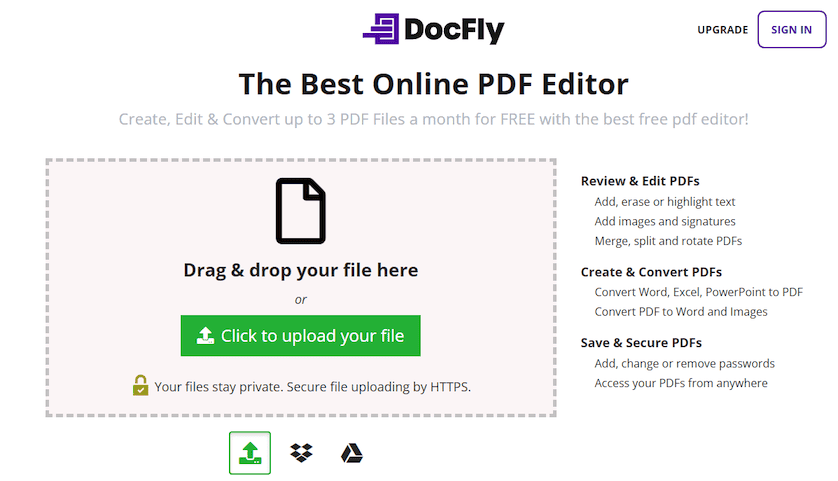
- Select the security settings you wish to apply, such as restricting editing or requiring a password.

- Download the secured file to your device.

DocFly provides an easy-to-use interface and robust privacy features, making it a reliable choice for securing your documents. DocFly also supports integration with cloud storage platforms, ensuring your secured files are always accessible yet protected.
While convenient, ensure the service you choose adheres to strict privacy and data security standards. Always review the platform’s terms and conditions to avoid inadvertently exposing sensitive information.
Method 2: Use Built-In Tools in PDF Software
Many PDF editors, such as Adobe Acrobat, offer built-in tools to lock PDFs. These tools are often included in premium subscriptions but provide a comprehensive range of options. To lock a PDF using Adobe Acrobat:
-
Open the PDF in your editor.
-
Navigate to the File or Security menu.
-
Select "Restrict Editing" or "Protect Document."
-
Set a password to prevent unauthorized changes.
-
Save the file with updated security settings.
This method is quick and straightforward, making it ideal for occasional use. Additionally, these tools often include options to add digital signatures or watermarking for added security. Digital signatures ensure authenticity, allowing recipients to verify the document’s source.
Method 3: Batch PDF Protection with Dedicated Software
For users handling multiple files, batch PDF protection is a time-saver. Specialized tools like PDFelement and PDF-XChange Editor allow you to:
-
Apply consistent security settings to multiple files simultaneously.
-
Create templates for repeatable protection tasks, reducing manual effort.
-
Generate detailed logs for auditing purposes, which is especially useful for legal and regulatory compliance.
To protect files in bulk, you typically:
-
Import the files into the software.
-
Define the security settings you want to apply.
-
Save the protected files to a designated folder.
Batch processing is particularly beneficial for businesses dealing with high volumes of sensitive documents, such as financial reports or client contracts. Organizations in industries like finance or law often rely on such tools to maintain compliance and streamline document management processes.
Method 4: Advanced Encryption for PDF Security Beyond Passwords
For heightened security, consider encryption methods that extend beyond simple password protection. Encryption ensures that even if unauthorized users access the file, its contents remain unreadable. Advanced options include:
-
Digital Certificates: Require recipients to authenticate their identity before accessing the document. Digital certificates are often issued by trusted authorities and provide an additional layer of verification.
-
Encrypted Containers: Store sensitive PDFs within a secure, encrypted environment. This method is common in industries with stringent data protection requirements, such as healthcare or finance.
Organizations handling intellectual property, trade secrets, or classified information may find these methods invaluable. For instance, digital certificates can ensure that only authorized stakeholders can review a company’s strategic documents, reducing the risk of leaks.
Method 5: Restrict Editing with Read-Only Settings
Some software offers a "Read-Only" mode that disables all editing functions. This feature is particularly useful for sharing documents in educational or collaborative settings where editing is unnecessary. To enable this:
-
Open the file in your PDF editor.
-
Set the document properties to "Read-Only."
-
Save the changes.
By locking the document in read-only mode, you ensure that recipients can view but not alter its contents, maintaining the document’s original integrity. For instance, educators can use this mode to distribute course materials without risking unauthorized changes.
Common Mistakes to Avoid When Locking PDFs
-
Using Weak Passwords: Ensure passwords are complex and not easily guessable. Combine uppercase and lowercase letters, numbers, and special characters for maximum security.
-
Failing to Test Permissions: Always verify that your restrictions work as intended before sharing the file. Test the file with a secondary user account to confirm its security settings.
-
Relying Solely on Password Protection: Passwords can be shared or cracked. Consider additional measures, such as encryption or digital certificates, for enhanced security.
-
Ignoring Batch PDF Protection Options: Managing files individually is time-consuming and prone to errors, particularly in large-scale operations.
-
Not Accounting for Compliance: Ensure your methods align with industry-specific legal and regulatory compliance standards. Failing to do so could result in penalties or data breaches.
-
Neglecting to Update Security Measures: Cybersecurity threats evolve constantly. Regularly update your tools and methods to stay ahead of potential vulnerabilities.
Why PDF Security Matters
PDFs are widely used in professional and personal contexts, making them a common target for cyberattacks. Studies show that PDFs account for 18.27% of detections in malware attacks, highlighting the importance of robust security measures. Malware often exploits unprotected PDFs to distribute harmful code, emphasizing the need for locking and securing these files.
Consider a scenario where an unprotected PDF containing financial data is intercepted and altered before reaching its recipient. Such breaches can result in significant financial and reputational losses, particularly for organizations in finance, law, or healthcare.
By implementing the methods outlined in this guide, you can protect your documents from unauthorized access and contribute to a safer digital environment.
Final Thoughts
Locking a PDF from editing is a crucial step in safeguarding sensitive information and ensuring document integrity. By understanding PDF permissions and utilizing the right tools, you can effectively secure your files. Additionally, be mindful of the methods you use and avoid common mistakes to maximize your protection efforts.
For organizations dealing with high volumes of sensitive files, adopting advanced PDF security measures and batch processing tools can save time and ensure consistent protection. Industries like education, healthcare, and law particularly benefit from these strategies due to their reliance on secure document exchange.
For additional resources, explore our guides on how to password protect PDFs and manage editing locked PDFs. Implementing these strategies can help you navigate the complex landscape of PDF security with confidence. With the right approach, you can ensure that your documents remain secure, compliant, and accessible only to authorized individuals.

Emily Shaw is the founder of DocFly. As a software developer, she built the service from scratch and is responsible for its operations and continued growth. Previously, she studied engineering at the University of Hong Kong and mathematics at the University of Manchester.
Loved what you just read? Share it!
Related posts you might enjoy
How to Password Protect a PDF - and Why You Should

How to Edit Locked PDFs

