How to Edit a PDF Without Adobe Acrobat
By
 Emily Shaw
| on
Emily Shaw
| on
PDFs have become a standard file format for documents. Whether it’s a contract, report, or eBook, PDFs are everywhere. However, editing these files can be a challenge if you don’t have the right tools. While Adobe Acrobat Pro is widely known for its PDF editing capabilities, it comes with a hefty price tag. Luckily, there are plenty of alternatives that allow you to edit PDFs quickly and efficiently—without breaking the bank. In this guide, we’ll explore why you need alternatives to Adobe, and provide a step-by-step tutorial on how to edit PDF files with DocFly.
Table of Contents
Why You Need Adobe Alternatives to Edit PDFs
Cost Efficiency
Adobe Acrobat, while feature-rich, comes with a significant cost, which may not be justifiable if you only need to edit PDFs occasionally. Many users don't require the full suite of advanced tools that Adobe offers, making it an expensive option for basic tasks like editing text, merging documents, or adding annotations. Many alternatives provide nearly all the editing features you need to edit PDFs for free. These alternatives offer great value, especially for users who are looking to make simple edits without the long-term financial commitment that comes with Adobe subscriptions.
Faster Speed
Some Adobe alternatives, such as web-based tools, offer quicker load times and more streamlined editing processes, especially when working with smaller documents.
Accessibility
One of the biggest advantages of using Adobe alternatives is the accessibility they offer. Since many of these tools are cloud-based, they allow you to edit PDFs from any device—be it a desktop (including Windows, Mac and Linux), laptop, tablet, or smartphone. There’s no need to install heavy software on your computer, which is particularly useful if you're working on multiple devices or need to make edits on the go. You can access your documents and continue editing wherever you have an internet connection, making cloud-based tools both convenient and flexible for today’s mobile work environment.
Simplicity and Ease of Use
For users who only need basic editing functions, Adobe Acrobat can feel overly complicated. It’s designed for power users, and its interface reflects that, which can make it overwhelming for someone who just wants to make minor edits. Many alternatives prioritize simplicity, offering clean and straightforward interfaces that are easy to navigate. This reduces the learning curve and allows even beginners to quickly become proficient in PDF editing. For simple tasks like adding or deleting text, rearranging pages, or inserting images, these alternatives make the process far less complicated than Adobe’s full suite of tools.
Step-by-Step Guide to Editing PDFs with DocFly
Editing PDF documents is now easier than ever, thanks to online tools like DocFly. With an intuitive interface and robust functionality, DocFly’s free PDF editor makes it easy to edit PDFs without the hassle of installing software. Whether you're making text edits, adding annotations, looking to convert PDF , or rearranging pages, DocFly provides a simple, efficient solution for all your PDF editing needs. In this section, we’ll walk you through the process of editing a PDF online with DocFly.
Step 1: Upload Your Files to DocFly
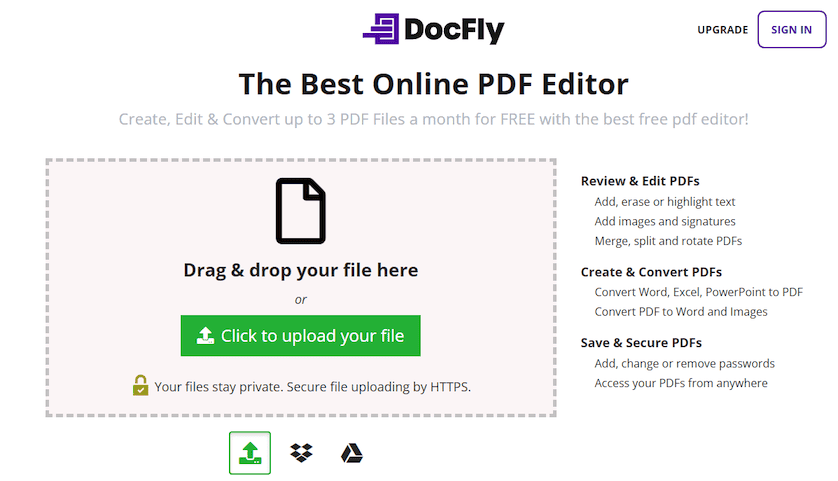
To begin, visit the DocFly website and upload your PDF. You can do this by clicking on the “Click to upload your file” button or simply dragging and dropping your document into the designated area. If your file is stored in cloud services like Dropbox or Google Drive, you can also import it directly from there.
Step 2: Edit Your PDF
Once your file is uploaded, open the editor by clicking on the file name, or by selecting the “…” dropdown next to the file and choosing “Edit.” In the editor, you can make changes using editing tools like annotate, edit text, insert PDF text boxes, and more. All the editing options are conveniently located in the toolbar at the top of the screen.

Step 3: Save and Export Your Edited PDF
After completing your edits, click “Save” to secure your changes. You may also wish to view the file using DocFly’s in-built PDF reader to confirm you are happy with the changes. To download or share your file, click the “Export” button. You can download it, print it, or export it directly to Dropbox or Google Drive. Note that DocFly allows up to three free exports per month.

Common Challenges When Editing PDFs Online and How to Overcome Them
While online PDF editors are convenient and affordable, they come with their own set of challenges. Below are a few common issues users face and tips on how to overcome them.
Limited Features
Online PDF editors often provide basic editing features such as text modification, annotation, or merging, but they might lack advanced features like form creation, OCR, redaction, or digital signatures.
Solution: Choose an online editor that fits your needs, such as DocFly, which offers a comprehensive range of features. If advanced editing is required, look for specific tools designed for those tasks, or consider combining multiple free tools.
File Size Restrictions
Many online editors limit the size of the PDF format files you can upload for editing. Large files may result in slow performance or may not be accepted at all.
Solution: Compress your PDF before uploading using a file compression tool or break the document into smaller parts for easier editing. Some PDF editors also include built-in compression options.
Security Concerns
Uploading sensitive or confidential documents to online platforms can raise privacy concerns, especially if the platform doesn’t prioritize data protection.
Solution: Use an online PDF editor that ensures security through encryption, or one that offers local file editing options. Always review the privacy policy of the platform and opt for those that clearly state how your data is handled.
Formatting Issues
Sometimes, free online PDF editors might not perfectly retain the formatting of your original document, especially when dealing with complex layouts or fonts.
Solution: After making edits, always double-check the final version for formatting changes. If necessary, use editors with strong formatting retention features or consider desktop editing software if you regularly work with heavily formatted documents.
How to Maximize Efficiency When Editing PDFs Online
To maximize efficiency when editing PDFs online, here are a few tips to streamline your workflow:
Use Templates: Many PDF tools offer templates for fillable PDF forms, contracts, and other documents. Using these can save time compared to creating PDFs from scratch.
Learn Keyboard Shortcuts: Familiarize yourself with common shortcuts for copy-pasting, undoing actions, and navigating the editor—this can greatly speed up the editing process.
Batch Processing: If the platform supports it, make use of batch processing features to edit, merge, or compress multiple files at once.
Use Cloud Storage Integration: Some online editors integrate with cloud storage solutions like Google Drive or Dropbox. This allows you to access and edit documents seamlessly without needing to upload and download files repeatedly.
Optimize File Size Before Editing: Compress large documents in advance, especially if you know the editor you’re using has file size limits or slower performance with bigger files.
Conclusion: A Simple Way to Edit PDFs Without Adobe
Editing PDFs no longer requires using Adobe Acrobat. With the rise of online PDF editors like DocFly, you can easily edit, merge, and modify your documents without any special software. These alternatives offer cost-effective, user-friendly, and secure ways to handle PDF editing needs. By following the tips in this guide, you can overcome common challenges and maximize your efficiency while working with PDFs online, making it easier than ever to manage your documents.

Emily Shaw is the founder of DocFly. As a software developer, she built the service from scratch and is responsible for its operations and continued growth. Previously, she studied engineering at the University of Hong Kong and mathematics at the University of Manchester.
Loved what you just read? Share it!