How to White Out on PDF: Step-by-Step Guide
By
 Emily Shaw
| on
Emily Shaw
| on
When working with PDFs, there may be instances where you need to hide or remove specific content. White-ing out a section of a PDF is a practical solution, whether you're protecting sensitive information or correcting a mistake. This guide will walk you through the process, covering multiple tools and methods.
Table of Contents
What is a Whiteout?
Whiteout, in the context of PDFs, refers to the process of obscuring or erasing text, images, or other elements within a document. Unlike traditional editing where content is replaced, whiting out ensures the hidden information is no longer visible or accessible. It's often used for:
- Correcting errors in a document.
- Redacting sensitive or confidential information.
- Preparing a document for further edits.
Step-by-Step Guide to White Out on PDF with DocFly
DocFly is a popular online tool for editing PDFs, including whiting out sections. Here’s how you can use it:
Step 1: Upload Your PDF
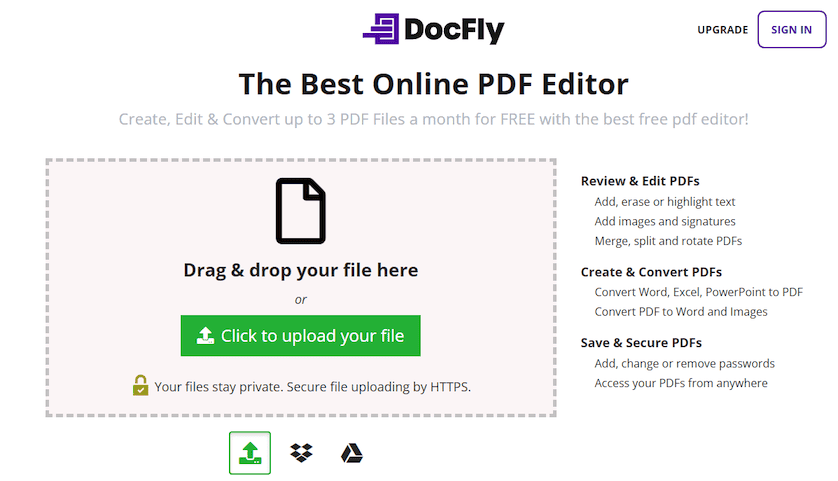
Start by visiting DocFly’s website and uploading your PDF. You can drag and drop the file or select it manually from your device.
Step 2: Open the PDF editor to whiteout
After uploading your file, open the editor by clicking on the file name or selecting the "…" dropdown next to the file and choosing "Whiteout" as shown below.

Step 3: Apply Whiteout
Click and drag over the sections of the document that need to be whited out. Adjust the size and placement of the whiteout boxes as needed.
Step 4: Save Your Changes
After applying the whiteout, save the edited document to your device. DocFly provides options for downloading the file directly or saving it to cloud storage.
Add New Elements Over the PDF Whiteout Area
Whiting out a section often leaves a blank space in the document. To maintain a professional appearance or add context, you can insert new elements like text, images, or shapes over the whiteout area. This step ensures the document remains polished and complete.
White Out Features in Different Software
Different software solutions offer unique whiteout features tailored to various editing needs. For example:
- Adobe Acrobat: Provides precise tools for whiting out and adding new elements.
- Microsoft Word: Offers a simple workaround for basic whiteout needs.
- DocFly: Combines whiteout functionality with additional editing features.
- Smallpdf, Sejda, and PDFescape: Online platforms that allow you to white out PDFs without downloading software.
Exploring these tools can help you find the right solution for your specific requirements.
Using Adobe Acrobat
Adobe Acrobat offers advanced editing tools, including whiteout features. Here’s how to do it:
- Open the PDF in Adobe Acrobat.
- Use the "Edit PDF" tool and select the section you want to white out.
- Apply the whiteout by inserting a white rectangle over the content.
- Add new text or elements using the "Add Text" or "Add Image" options.
Whiting Out PDFs with Microsoft Word
If you don’t have access to dedicated PDF software, Microsoft Word can be a workaround. Follow these steps:
- Convert the PDF to a Word document. You can use Word’s built-in conversion feature or an online converter.
- Use Word’s drawing tools to create white shapes over the unwanted content.
- Convert the edited Word file back into a PDF.
This method is less precise but works for basic edits.
Using Online Tools to White Out PDFs
In addition to DocFly, several other online platforms provide whiteout tools for PDFs. These include:
- Smallpdf: Offers an intuitive whiteout feature and additional editing options.
- Sejda: Allows you to white out and annotate PDFs easily.
- PDFescape: A versatile tool for editing PDFs without downloading software.
When using online tools, ensure the platform is secure, especially if your document contains sensitive information.
Additional Editing Tools for PDFs
If you need more than just whiteout capabilities, explore additional editing tools for PDFs. These may include:
- Highlighting and annotating: Useful for collaboration and review.
- Merging and splitting: Combine multiple PDFs or extract specific pages.
- OCR (Optical Character Recognition): Convert scanned PDFs into editable text.
These tools can streamline your workflow and enhance the versatility of your PDF documents.
Legal and Formatting Considerations
Before whiting out a PDF, it’s important to keep legal and formatting factors in mind:
- Legal Implications: Redacting sensitive information may be subject to legal requirements, especially for official documents. Use proper redaction tools to ensure the hidden content cannot be recovered.
- Formatting: Ensure the whiteout and any added elements blend seamlessly with the document’s layout. This prevents the edits from appearing obvious or unprofessional.
Conclusion
Whiting out sections of a PDF is a straightforward process when you have the right tools. Whether you’re using DocFly, Adobe Acrobat, or even Microsoft Word, this guide has shown you how to efficiently white out and edit PDFs. Don’t forget to consider legal and formatting aspects to ensure your document remains professional and compliant.
For more tips on how to create PDF documents or learn how to type on a PDF, check out our other guides!

Emily Shaw is the founder of DocFly. As a software developer, she built the service from scratch and is responsible for its operations and continued growth. Previously, she studied engineering at the University of Hong Kong and mathematics at the University of Manchester.
Loved what you just read? Share it!