
How to Split a PDF into Multiple Files
By
 Emily Shaw
| on
Emily Shaw
| on
PDF documents are often packed with extensive information. They are the standard for digital documentation in educational, professional, and personal settings. However, only some pages may be relevant to your specific needs or tasks when dealing with large files. In such cases, you may need to split your PDF into multiple files.
Doing so lets you focus on only essential information when sharing specific contempt, preparing presentations, or submitting work. With online PDF editing tools like DocFly, splitting a PDF into multiple files is simple and easy. In this article, we'll show you how to do it.
Table of Contents
When You Might Need to Split a PDF
Many situations might require you to separate PDFs into smaller individual files. Some of the most common include:
- Document Submission Compliance: Many online platforms, educational institutions, and professional settings have strict requirements regarding file size and content specificity. Splitting a PDF helps comply with these restrictions by allowing you to extract and submit only the necessary pages, avoiding the hassle of sending entire documents.
- Information Distribution: In business environments, it's often required to disseminate specific sections of a comprehensive report to different departments. Splitting the document ensures that each department receives only the relevant information, enhancing security and maintaining focus.
- Resource Allocation in Education: Educators often need to distribute individual chapters or sections of textbooks or study materials to students. Splitting a large educational PDF into smaller, manageable sections can make digital learning more accessible and organized.
- Legal Document Preparation: In legal proceedings, presenting specific pages of extensive documents is crucial. Separating a PDF allows legal teams to isolate and distribute only the pertinent pages to involved parties, ensuring confidentiality and compliance with legal standards.
Step-by-Step: Splitting PDFs with DocFly
Splitting a PDF with DocFly is a simple process that can be done in just a few clicks. As an online tool, you can use it from Windows or MacOS systems. Follow these steps, and you'll have smaller, more manageable files in a matter of minutes.
Step 1: Open the PDF Splitter Tool
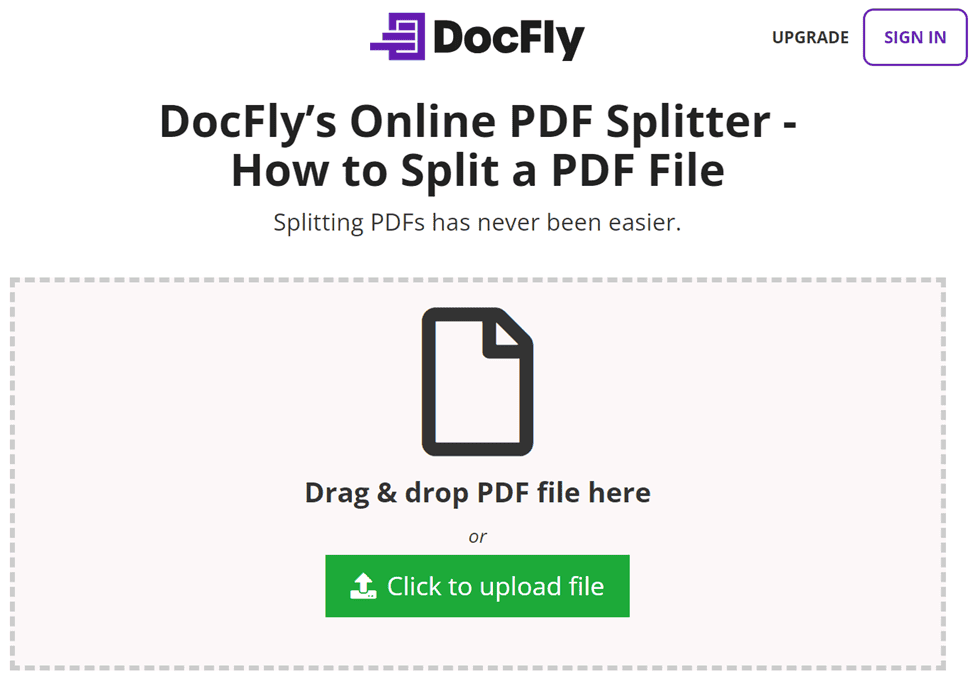
To start splitting your PDF file, access the online PDF splitter tool.
Step 2: Upload your PDF Document
Once you're on the PDF splitting page, you'll notice the file drop zone in the middle of the page. Here, you can upload the PDF you want to split. Simply drag and drop your PDF file into this area, and DocFly will automatically begin uploading.
Alternatively, if your PDF is stored in a specific folder and dragging isn't convenient, you can click the 'Upload' button to open a file explorer. Navigate through your personal folders to select the file manually and open it to upload.
Step 3: Split Your PDF
After you've uploaded your PDF, you have two options for splitting it. Option 1 involves using the "Extract PDF Pages." This will allow you to take pages from PDF files while keeping the original PDF file intact. Option 2 is the "Delete Pages" feature, which allows you to split your PDF by deleting unwanted pages from them from the original file, leaving only the ones you need to work with.
Option 1: Extract PDF Pages
Check the box to the left of your file name. Then choose the Edit tab, and, under the Organize menu, click on Extract Pages.
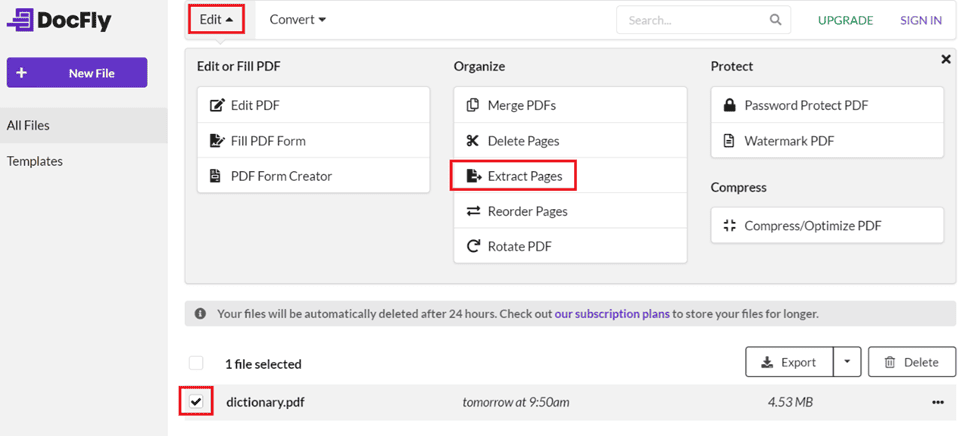
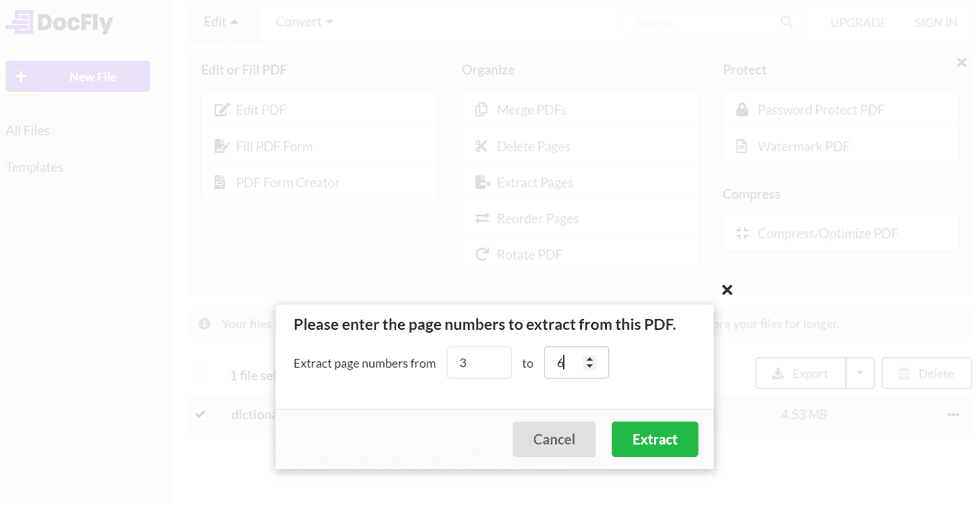
This will launch the Extract Pages wizard, where you can choose which pages you want to remove from PDF to begin splitting up your PDF File.
Option 2: Remove Pages
Check the box to the left of your file name and select the original PDF file. Then click the Edit tab and Delete Pages.
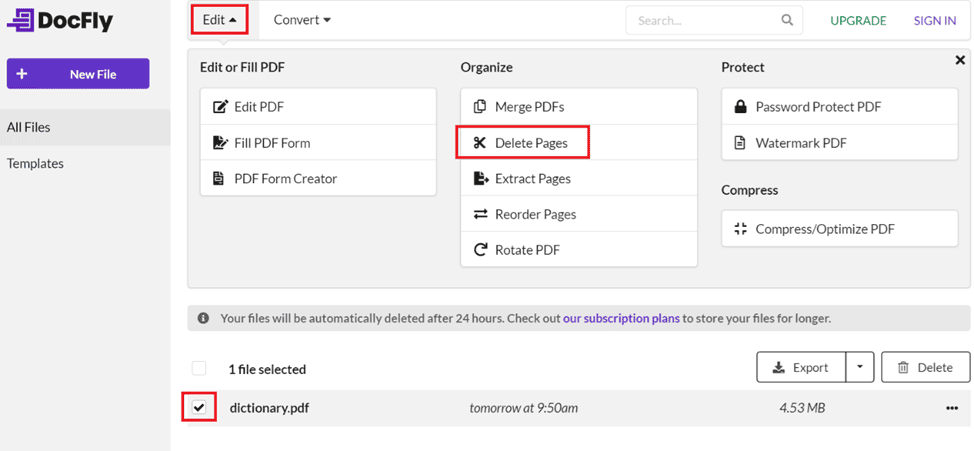
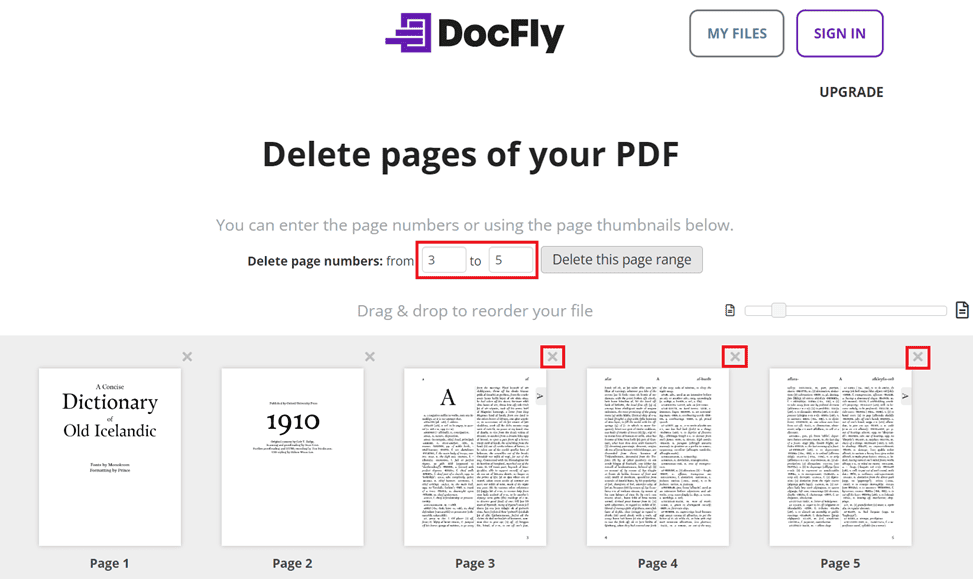
On the next screen, you can select the page range you want to delete by typing the page numbers or by clicking on the ‘X’ of each page you want to remove.
Step 4: Download your Files
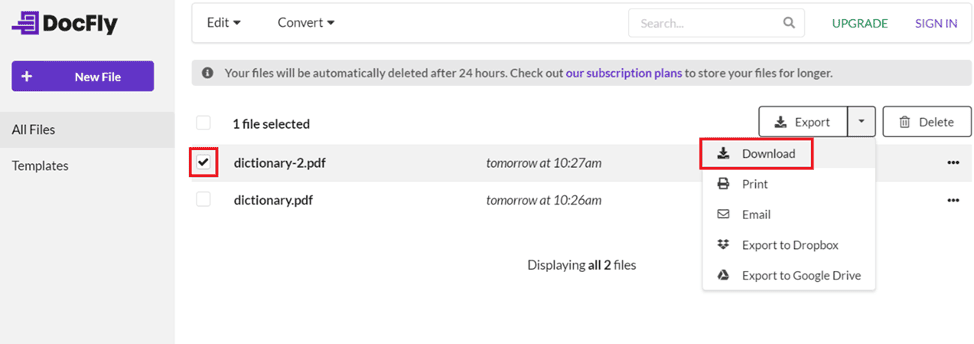
Once you decide how to split your PDF, your new file will be on your Dashboard, ready to be downloaded. On your Dashboard, click on Export and Download to save your new files to your computer.
With DocFly, you can split up to three PDFs a month for free, but if you need to split files more frequently, you can upgrade to an unlimited plan.
Step 5: Benefit From Your Split PDF Files
Now that you've split your PDF into smaller, more relevant files, it will be much easier to work with and distribute to your co-workers, students, or clients.
Common Challenges Faced in Splitting a PDF into Multiple Files
- File Integrity: When splitting a PDF, it is very important to maintain the original formatting and quality in your new documents. If the splitting tool does not adequately preserve the fidelity of the PDF, distortions in layout, font changes, or altered graphics can occur. These issues can detract from the professionalism of the document and may require time-consuming corrections.
- File Size: Managing the file size of the extracted pages can be difficult when dealing with high-resolution content or PDFs containing numerous images and embedded fonts. Extracted sections may end up disproportionately large, consuming excessive storage or becoming cumbersome to share via standard digital methods like email or online cloud-sharing platforms like Dropbox.
- Security: Protecting sensitive information during the splitting process is another concern, especially in a business setting. PDFs often contain private data, and improper handling during the split can lead to unauthorized access. Ensuring that the tool used for splitting PDFs complies with strict security protocols, such as encryption and secure access controls, is vital to preventing data breaches.
Tips for Efficient PDF Splitting
Tip 1: Plan Your Split
Before splitting, think about the specific content you want to separate, as well as what you need to keep and what can be deleted. Planning helps you split your PDF effectively on the first try.
Tip 2: Optimize PDFs Before Splitting
Before you start the splitting process, optimize your PDF files. This step involves compressing the file size, removing unnecessary elements like outdated metadata or redundant images, and ensuring the document is clean from any elements that might complicate the split. Optimization can result in smoother and faster processing, especially when handling large PDFs with many pages or high-resolution images.
Tip 3: Understand Your PDF Editing Tool's Capabilities
Familiarize yourself with all your PDF editor's functionalities, such as merging, converting, or compressing features. You might find that one of these other features better suits your needs.
DocFly Makes PDF Management Easy
Splitting a PDF into multiple files simplifies document management, making handling, sharing, and organizing files easier. DocFly gives you better control over how you distribute and store your information, enhancing both your productivity and data security.

Emily Shaw is the founder of DocFly. As a software developer, she built the service from scratch and is responsible for its operations and continued growth. Previously, she studied engineering at the University of Hong Kong and mathematics at the University of Manchester.
Loved what you just read? Share it!