
How to Rearrange Pages in PDF
By
 Emily Shaw
| on
Emily Shaw
| on
Managing PDF files can sometimes be a challenge, especially when you need to rearrange PDF pages. Whether it's for better organization, correcting the order of content, or simply tidying up, learning how to rearrange pages in a PDF can be useful. In this guide, we will explore various methods you can use to quickly and easily modify the order of pages in your PDF document. We will also walk you through a step-by-step process of rearranging pages using DocFly, a popular online PDF editor.
Table of Contents
Methods to Rearrange Pages in a PDF
There are several ways you can reorganize pages within a PDF file, depending on the tools you have at your disposal. Here are a few methods you can try:
Using Online PDF Editors
Online PDF editors are one of the most convenient ways to rearrange pages in a PDF. They allow you to upload your document, adjust the page order, and download the newly organized file—all without needing to install any software. These PDF tools are ideal for quick edits (such as rotate PDF) and work well on various devices, from desktops to smartphones.
Rearranging Pages with Desktop Software
For those who prefer offline solutions, desktop software like Adobe Acrobat or PDF-XChange Editor provides powerful features for managing PDF files. These programs allow for more control over large PDF files and are typically faster than online tools, especially when dealing with more complex functions such as OCR.
Other Methods
In addition to the online and desktop options, some word processors and document viewers, like Microsoft Word or Google Docs, offer limited PDF management features, including the ability to rearrange pages after converting the document to another format. While not as seamless as dedicated PDF editors, these options can be helpful in certain situations.
Step-by-Step Guide: How to Rearrange Pages in a PDF Using DocFly
DocFly is a user-friendly, online PDF editor that allows you to easily rearrange the pages and edit PDF. As an online tool, DocFly is compatible with all operating systems including Windows and Mac. Follow these simple steps to get started:
Step 1: Upload Your PDF to DocFly
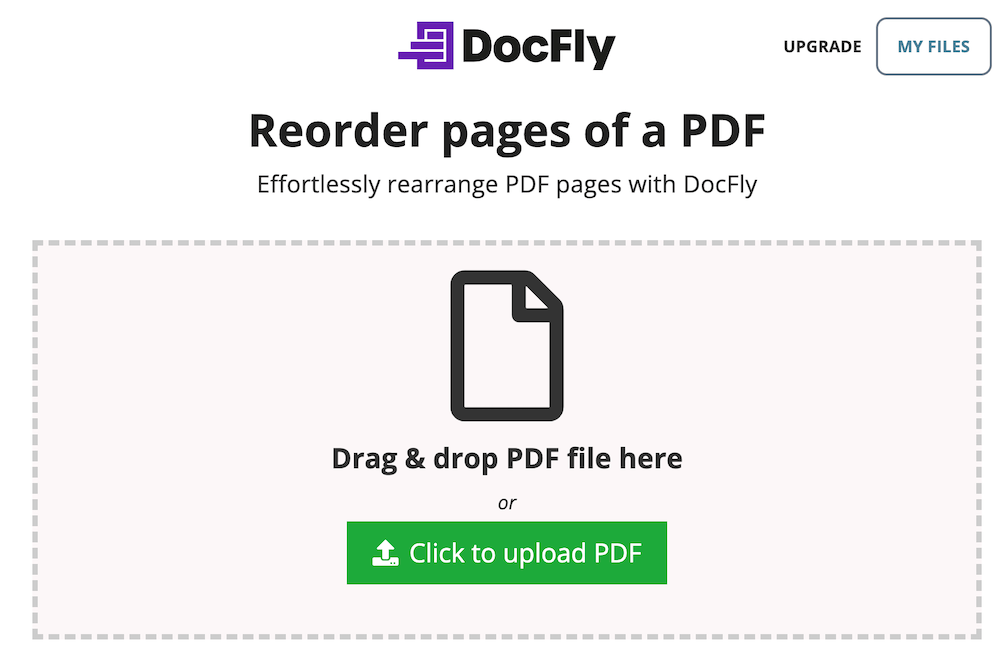
First, head to the DocFly website. Once there, click on the Click to upload PDF button. You can choose to upload your PDF directly from your device or import it from cloud storage services like Google Drive or Dropbox. After selecting your file, DocFly will load your document.
Step 2: Access the Reorder Pages Tool
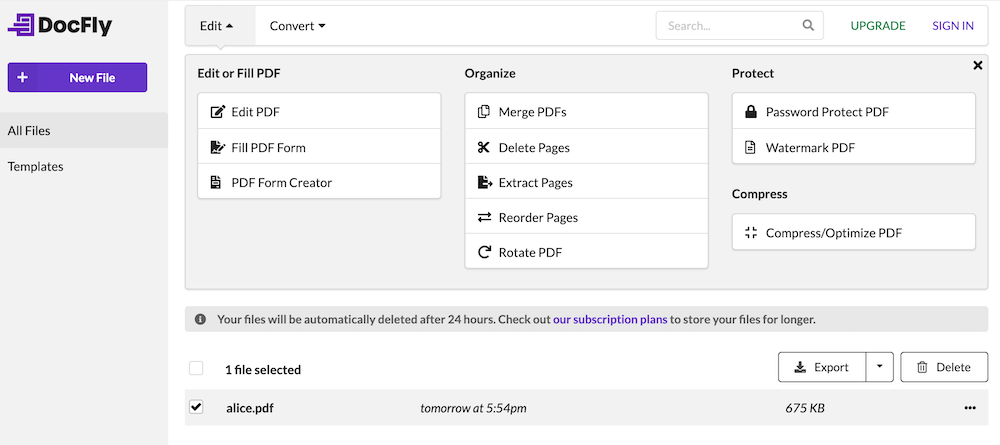
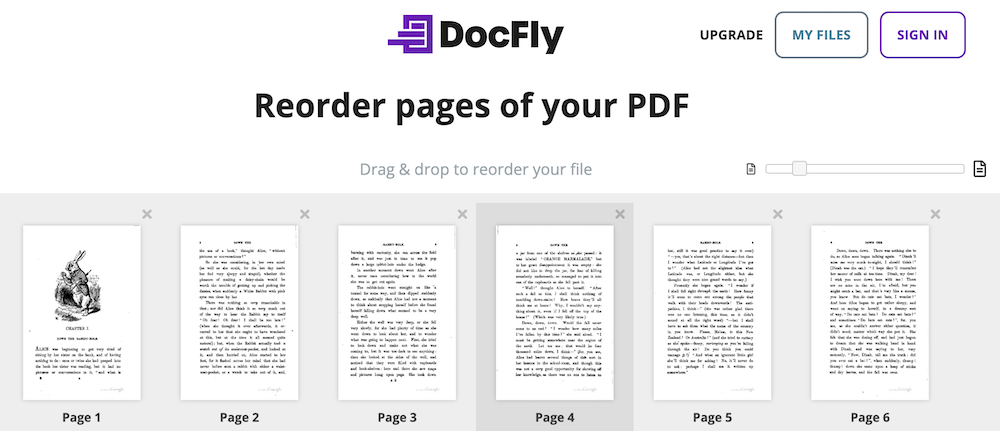
If you did not use the dedicated Reorder PDF Pages site shown above, your file should appear in the interface. After your PDF is uploaded, navigate to the toolbar at the top of the interface. Click on Edit and then Reorder Pages. This will bring up a preview of all the pages in your PDF, displayed in thumbnails.
Step 3: Drag and Drop to Reorder Pages
To rearrange the pages, simply drag and drop the thumbnails into the desired order. Click on the page you wish to move and drag it to the new position. You can reorder as many pages as needed until you are satisfied with the layout.
Step 4: Save and Download Your Updated PDF
Once you’ve arranged the pages to your liking, click on the Reorder Pages button. DocFly will process your changes. Use the drop-drop menu to the right of your filename to download your newly organized PDF, or save it directly to your preferred cloud storage service.
By following these simple steps, you can efficiently reorder single pages in your PDF using DocFly in just a few minutes.
Additional Tips for Organizing PDFs Effectively
To ensure your PDFs are always well-organized and easy to navigate, here are a few tips:
Use Descriptive Page Titles
If your PDF has multiple sections, adding bookmarks or labels to specific pages can make it easier to locate important information. Tools like online PDF editors allow you to annotate and add bookmarks for easier navigation.
Compress Large Files
If your PDF is large and contains many pages, consider compressing it after rearranging the pages. This will make sharing and uploading the file much quicker.
Other PDF Editing
In addition to rearranging pages, you might need to merge PDF pages, rotate pages, delete pages, split PDF, or edit PDF forms. DocFly can help you with all of those tasks and maintain clean, organized files.
Keep Backup Copies
Before making any changes, it’s always a good idea to keep a backup of the original file, just in case something goes wrong during the editing process. This will allow you to revert back if needed.
Organize Pages in a Logical Flow
Whether it's a report, presentation, or form, think about how your document will be read. Arrange the pages in a logical order so that readers can easily follow the content.
Wrapping Up: Simplify Your PDF Organization
Rearranging pages in a PDF doesn't have to be a complicated task. No matter the type of file sizes you're working with, a PDF solution like DocFly make it simple to rearrange pages and organize your documents efficiently. Rearranging the pages of a PDF is a quick way to improve document organization and ensure that the content flows logically for the reader. By following the methods and tips outlined in this guide, you’ll be able to keep your PDFs structured, efficient, and easy to navigate, saving time and ensuring a professional presentation.

Emily Shaw is the founder of DocFly. As a software developer, she built the service from scratch and is responsible for its operations and continued growth. Previously, she studied engineering at the University of Hong Kong and mathematics at the University of Manchester.
Loved what you just read? Share it!